
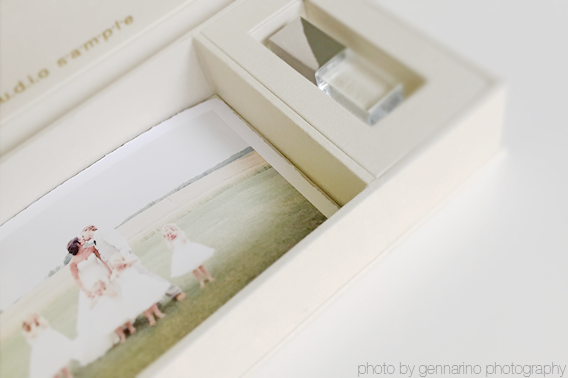

LOOSE PRINTS

$0.00

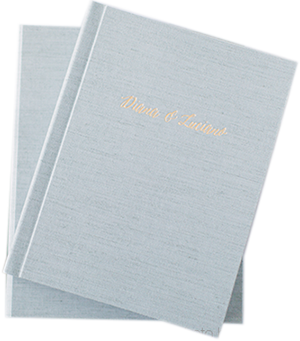
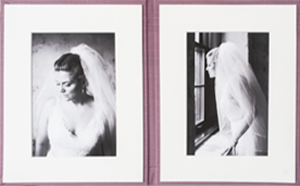
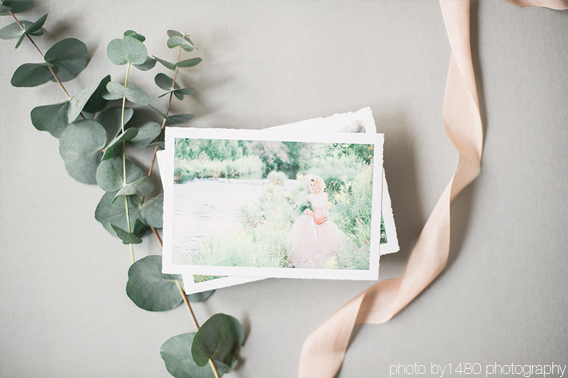
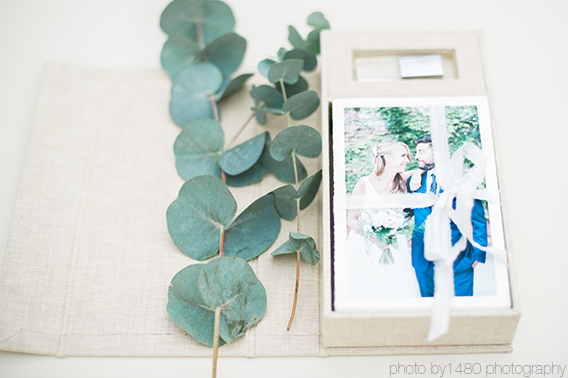
Beautiful heirloom prints.

Printed on fine art MATTE paper. Printed with our state of the art printing processes using the finest pigment based inks and archival papers.

IMPORTANT DETAILS BELOW – PLEASE READ CAREFULLY

  • PLEASE RESIZE all images to desired size for upload is requested. Examples 4×6 @300 DPI, 5×7 @300 DPI.
  • HAND TORN Giclee prints, our production team at Dekora will apply the correct edge width to apply the torn edge effect. Please size to the intended size of your final print.
Production Time: 3-10 business days + shipping
All prices are in Canadian dollars


PLEASE LOGIN
Dekora Album Co. services exclusively to professional photographers. To purchase products, please first login.

If you are a professional photographer interested in partnering with Dekora Album Co but do not yet have a login, please register your company.

  • Total

Print Sizes

4×6 | 4.5×6 | 5×7 | 7×10 | 8×10 | 11×14

Paper Types:

Fine Art “Giclee” Matte Paper printed using pigment inks (smooth printed surface)

Options:

Borderless | Even Border | Hand Torn Edges

Custom sizes please contact us for details

[wp-members status=”in”]

There are no reviews yet.

Add a review

Be the first to review “LOOSE PRINTS”

SKU: Loose Prints Category:
Updating
  • No products in the cart.
Loose Prints

Step by
step
guide

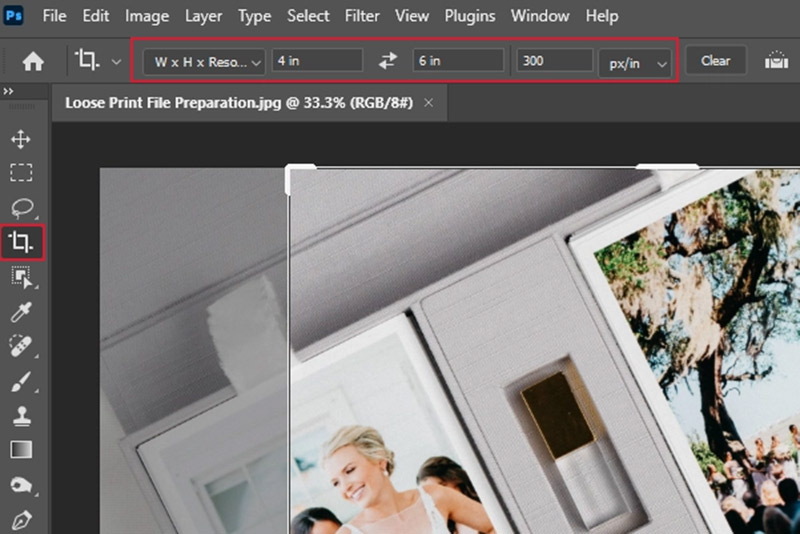
1.Crop Your Image

» Open the photo in Photoshop.

» Select the Crop Tool from the toolbar.

» In the top options bar, select W x H x Resolution:

– For a 4x6" print - use 4 in and 6 in, 300 px/in
– For a 5x7" print- use 5 in and 7 in, 300 px/in

» Drag to adjust and position the crop.

» Press Enter/Return to apply the crop.

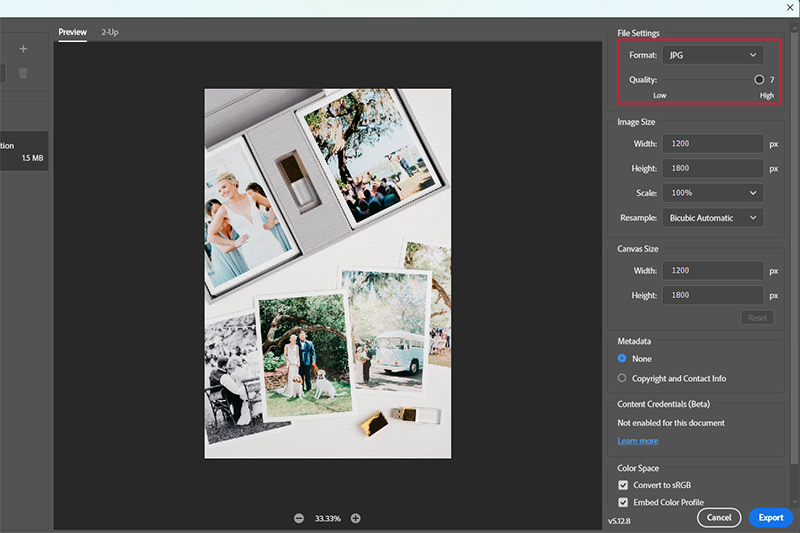
2. export your immage

» Go to File → Save As… (or File → Export → Export As…).

» Choose JPEG as the file format.

» Set Quality to 12 (or 100% if using Export As).

» Save the file.

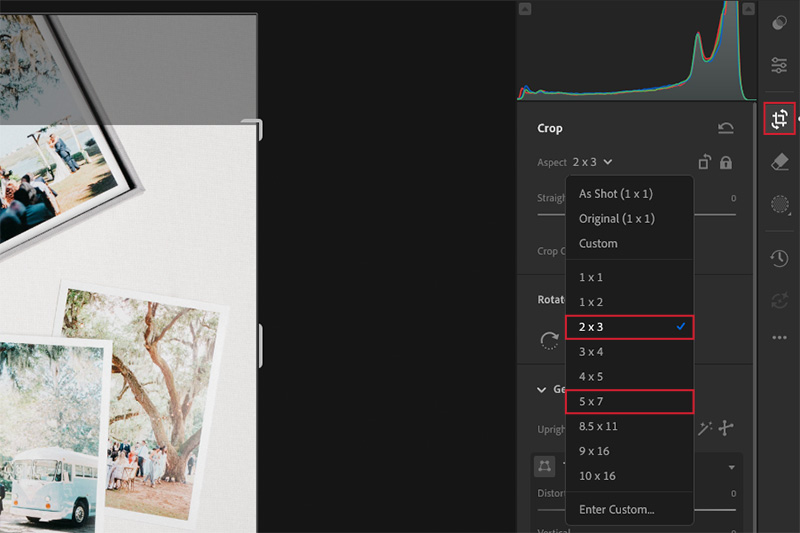
1.Crop Your Image

» Open the photo in Lightroom.

» Click the Crop tool.

» In the Aspect menu, choose the ratio you need:

– Choose a 2x3 aspect ratio for 4x6" prints;
– Choose a 5x7 aspect ratio for 5x7" prints;

» Adjust and position the crop, then apply.

2. export your immage

» Select the images that are ready for export.

» In the top bar, go to File → Export

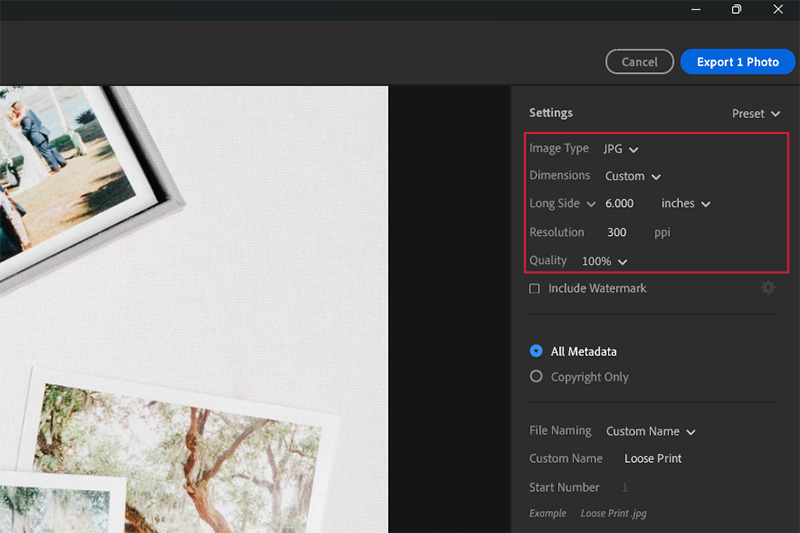
» Under Settings, set:

– Image Type: JPG
– Dimensions: Custom → Long Side → choose inches and enter the length you need for your loose print size (for a 4x6" print, the long side is 6"; for a 5x7" print, the long side is 7").
–Quality - 100%

» Export your image/images